Around 12 years ago at the age of 15 I discovered I was partially sighted (I think the official term in the UK is sight impaired). It probably seems weird to find out you’re partially sighted at that age, but think of it like finding out you are colour blind, I have never had any other experience. I have partial tunnel vision that affects the left side of both of my eyes. Through tests and MRI scans, the conclusion was the part of my brain responsible for processing the visual information coming from the left side of my eyes never developed when it was supposed to, so visual information reaches the point where it should be processed, and then stops. It’s not getting any worse, but it will also never get any better, I’m not allowed a driving licence, for example. I can still do a lot of activities you might be surprised by, like playing tennis, but I do sometimes walk into door frames on my left side and bump into people in busy crowds when I am not paying attention. I quickly found out that trendy desk set ups don’t work so well for me. I used to have two screens, one in the centre and one to my left, until I realised I couldn’t see the left screen in my peripheral vision at all and would have to turn my head and refocus a lot, which I find difficult. Now I use one big 32" screen instead. Sometimes I use this lack of peripheral vision to my advantage, my phone placed to the left side of my desk is out of sight, and therefore out of mind.
With distractions reduced and ergonomics improved, accessibility in my text editor was the next focus. I believe Neovim has some unique plugins that can improve your experience like they did for me, but I am going to focus on what accessibility is in relation to a text editor like Neovim first.
What is Accessibility in Vim? #
Accessibility in a tool like Vim is a controversial topic to start with. The nature of the tool will stop some people from ever using it. The joke that you can’t quit vim comes from the lack of visual information when you open a file with Vim in your terminal. This comes from a time where reading about a program before you used it was the norm. A lack of visual feedback is common in a lot of CLI tools, for example, when an operation goes well, nothing is printed to the screen. Printing successful messages in new tools, even brief ones, is now recommended , but many CLI tools were written decades ago, and will never print anything to the terminal unless the creators of these tools decide to add that functionality in. Modern users are used to a specific layout on their computers, a top right section to close, expand, and minimise a program, a left hand bar with common functionality divided into menus, a clear way to create a new file in the centre of the screen when you first open the application, and lots of visual feedback when you do anything. Vim doesn’t have these features, not by default anyway.
The philosophy of a Linux tool is it should handle one thing. The desktop environment handles the UI of your system (opening and closing windows, spacing, layout). The shell you are using (e.g bash, zsh, fish) handles input (should this command run a program? Is it an alias for another program? Is it a variable that needs evaluating?). So with that idea in mind, Vim’s “job” is a modal text editor, it handles keyboard input, and depending what mode you are in, that input either writes text to a buffer (a file in memory) or moves your cursor around the screen (there is also “command” mode too, but “input” and “normal” mode are the main modes in Vim).
The Linux philosophy and modern accessibility ideals seem incompatible with one another, but a middle path has been created, where accessibility in a terminal text editor can be found, at least after some work. Neovim is a rewrite of Vim in the programming language Lua. Rather than trying to handle all the requirements anyone could want from Neovim, it works by allowing plugins to change and extend the usability instead. This keeps Neovim itself focused on the modal text editor core, whilst accessibility is improved through smaller plugins that you can add and remove as you please. Vim also allows for plugins, but Lua is an easier language for developers to use, so the plugin community in Neovim is very active. Some plugins are so ubiquitous they get moved into the core Neovim program, but for the most part, Neovim is a modern take on Vim with the added goal of extensibility.
This doesn’t solve the problem of getting started with a tool like Vim/Neovim, and learning a text editor is a strange concept to many people who want to be able to move fast straight away, but I would argue that this isn’t always an accessibility issue, it’s a familiarity one. The foundation to a modal text editor is to use your keyboard to do multiple things depending on the mode you are in, for example in Vim h, j, k, and l move your cursor left, down, up and right respectively when you are in “normal” mode. This took about two weeks for me to get used to when I first started using Vim; I even disabled the use of the arrow keys to stop me instinctively using them. I also had to learn how to touch type as I realised I was looking at the keyboard a lot more than I should be to really utilise a tool like Neovim effectively. This all sounds very inaccessible, but now that I have learnt to properly touch type, and all of the shortcuts I use in Neovim are memorised, I now type faster, make less spelling mistakes and can keep my eyes fixed to the screen, which for me is a huge accessibility win. It’s made coding more accessible in the long run, even though I had to start from a place that was slower and more uncomfortable in the beginning. The only thing that has changed is the familiarity, which is an aspect of accessibility but not equal to it.
My position here is that Neovim can be very inaccessible, or it can enable your like no other text editor can. There are improvements to be made in the visibility of plugins (there are various websites where plugins are listed, developers also post them on Reddit and other social media sites) and the on-boarding of new users could be simplified, but once you have found the tools you need, you have a set up that suits your personal needs almost perfectly. The problem with larger IDEs, operating systems and browsers is actually the opposite problem to Vim and Linux - not being able to take features away. It definitely requires a shift in mentality, but once you have the functionality you want and nothing more, it creates a less cluttered environment for you to write code in, which is what all of this is for.
Making Neovim Accessible #
Below I outline some settings and plugins that will improve your Neovim experience. Neovim configuration can be placed in one file, a popular starting point is kickstart.nvim - I started with this file and then split my configuration into separate files when I understood the settings. My config files for Neovim can be found here . If you copy the kickstart set up, you may find some of these settings or plugins already there, and you can add any of these settings to that file. I will start with the plugins that improve my experience the most, and then end with some “nice to have” settings.
Note I am using the lazy.nvim plugin manager to add my plugins, there are currently multiple plugin managers available for Neovim, most plugins show you how to install their plugin with a few different managers. An official package manager has been added to Neovim that I plan to use in the future.
Flash #
This plugin improved my workflow the most. The idea with this plugin and others like it is to type in the word you specifically want to go to, and then use the shortcut that the plugin provides to jump to that word. As you can see in the example below, you enable the plugin with a keymap (for me this is Space + v), this darkens all of the text on the screen. Then, you start typing the word you want to jump to, such as “dev” for “developer”. After you have typed 2 characters, a shortcut character will appear, changing the word “developer” into “devhloper”. To go to that instance of “developer”, just press the shortcut character, in this case “h”.
When I really got used to this plugin it was magical. Vim motions are great, but one of the slower aspects of Vim is horizontal movement. It’s pretty easy to go to the start or end of a line, but moving to a specific word can take a bit longer. This plugin removes all friction from complex motions whilst still adhering to the modal nature of Neovim.

As you might be able to tell, I hate visual search fatigue. Seeing a wall of text like the one below, knowing there is a word I am looking for, but not being able to see it, frustrates me. This plugin basically removes all of that. If I know I need to update the paragraph with the word “computer” in it, I can just start searching for that word with Flash, it will highlight it and provide a shortcut to take me there.
Stay Centered #
Stay Centered
does what it says on the tin, and I didn’t realise how much I would enjoy coding like this until I tried it. It keeps the row your cursor is on in the centre of the screen, it sounds simple, and you can achieve this in other text editors easily, but in Neovim you have to set a lot of key maps to get this behaviour without a plugin; if you are moving down by pressing j in normal mode, you would remap this to jzz - zz centres the cursor horizontally. Then you have to do this for other movements, like moving down by half a page, by a full page, by a paragraph, and then moving up, and so on. There is also jarring behaviour at the end of files that you would have to handle as well. Stay Centered does all of this for you.
I love this plugin, I like to keep my eyes in one place on the screen and have the code I am looking for appear in my view as I use shortcuts or search tools to find it. It’s the same reason I use rofi as an app launcher and search tool - I press a shortcut, the rofi search box appears in the middle of my screen, I search for what I need and continue. No search fatigue from looking around my desktop for an application or inside a file manager for a file. It may only save me a second or two, but it helps me to stay focused.

Snacks Picker #
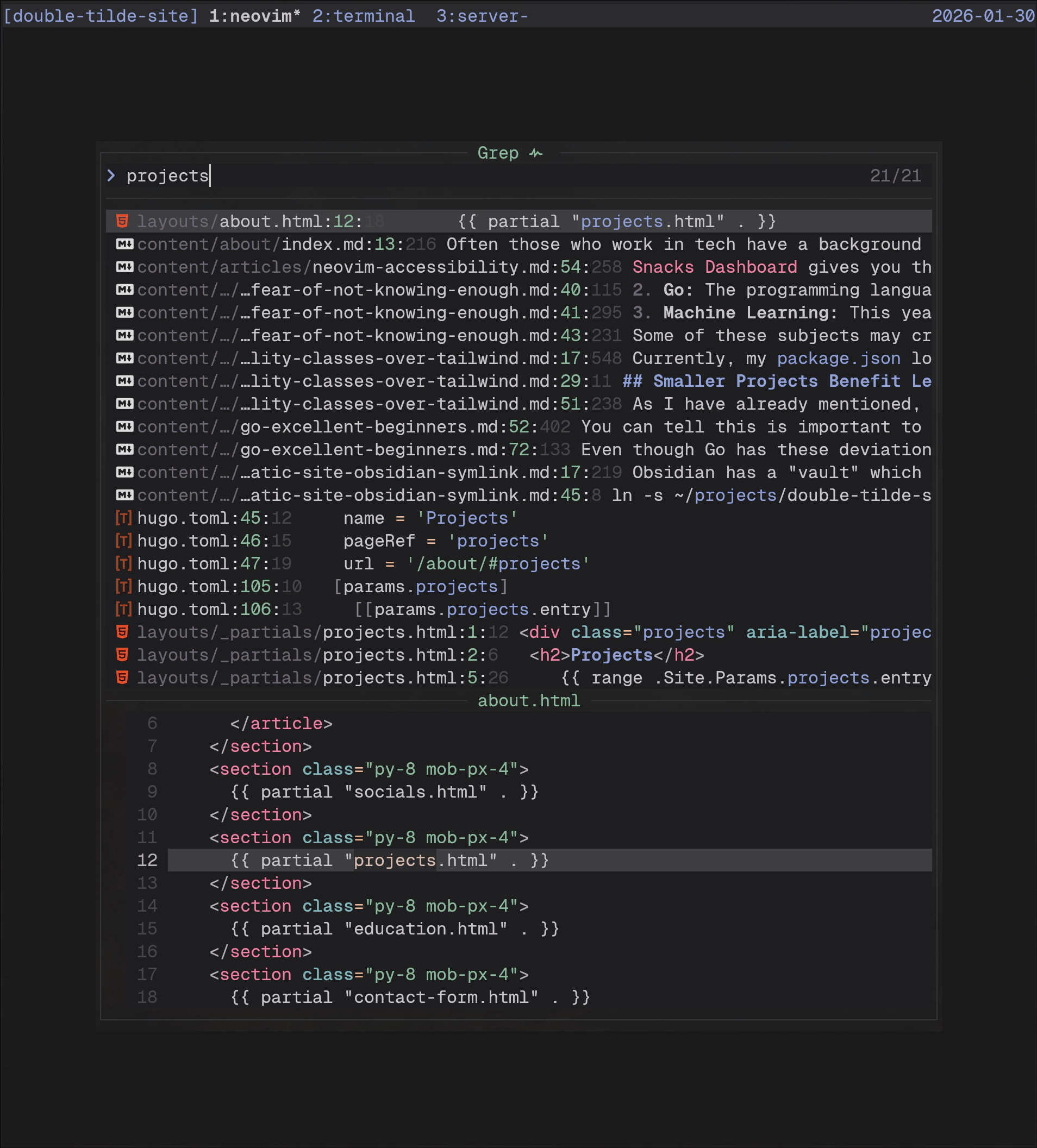
Snacks is collection of smaller plugins, one of these is Snacks Picker , it continues the theme of my “search first” setup. Snacks lets you set up various shortcuts to search for whatever you like. I use the “smart find files”, “grep”, and “buffers” search functionality the most. Having these search modes separated is really useful because you don’t need to sift through files when you are looking for a keyword, or all of your files when you are looking for a file you were just working in.
Snacks Picker has more search functionality than I have outlined here, you can search git branches, command history, notification history and more. You can only have all of these options available to you through a plugin that is designed to give you fine tuning over the domain you are searching, if not the results would just be too cluttered and confusing. I also like that Snacks Picker is full screen by default, searching through a code base is often complicated and you need a lot of context to know if what you have found is what you were looking for. Search tools should not be squashed in the top corner or in a side menu, which often makes their results difficult to parse.
Snacks Dashboard #
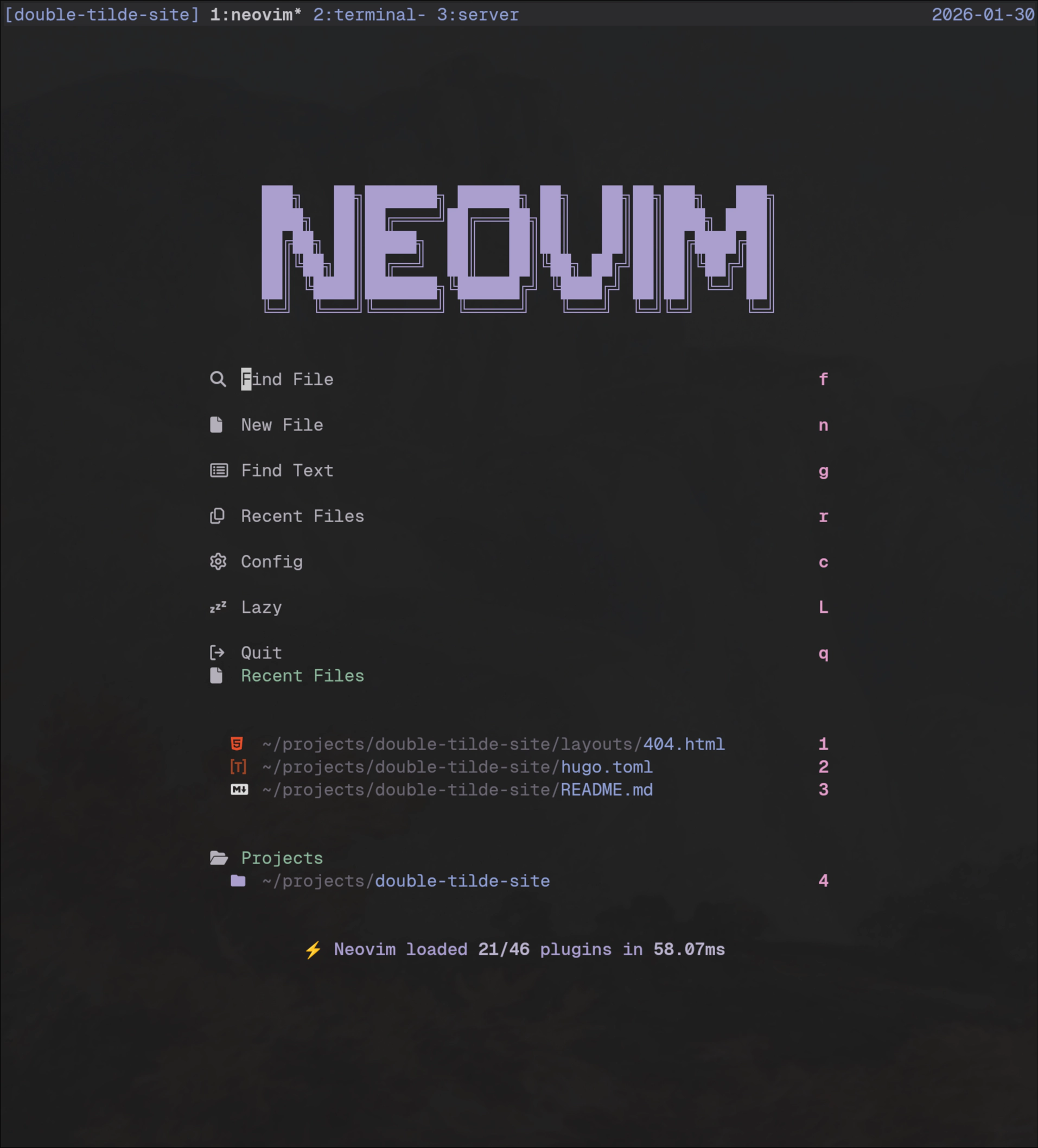
Snacks Dashboard gives you the home page feel you are used to with VS Code and other editors, with visual instructions on how to open a new file, find files, open your config, access recent projects and quit Neovim.
I like to keep the Dashboard simple, only including useful information and common functionality here. To see the Dashboard you need to open Neovim without a file in your terminal like this: neovim instead of neovim . or neovim index.html. My config for Dashboard is pretty simple and looks like this.
Remaps #
This one is definitely not necessary, but I like common commands to be easy to type, so I have set Space + l + w to write the file and Space + l + q to quit Neovim. They are easier and quicker to type than the command line versions.
vim.keymap.set("n", "<leader>lw", "<cmd>w<CR>", { desc = "[L]ets [W]rite" })
vim.keymap.set("n", "<leader>lq", "<cmd>q<CR>", { desc = "[L]ets [Q]uit" })In vim you use / to start searching the file you have open, without this keymap, the highlighted text of the search result will stay highlighted until you perform a new search, which can be visually distracting.
-- Set highlight on search, but clear on pressing <Esc> in normal mode
vim.keymap.set("n", "<Esc>", "<cmd>nohlsearch<CR>", { desc = "Press ESC to remove search highlight" })What’s Next? #
As you can see, Neovim has a lot of potential, and even exceeds in accessibility with some of these excellent plugins. However it also lacks simple functionality out of the box, like clearing the highlight from your search results, that you would expect to be the default setting. Knowing which plugins to choose, and what settings are available to you, is not obvious. I personally think the difficulty of Neovim and Vim comes from a change in mentality from the users the past, who would read manuals on their tools, with the users of today, who want a faster initial experience. However, Neovim is moving in the right direction with their official plugin manger added, and other settings becoming easier than ever to toggle. When you look at the direction Neovim is going, and the community/tools around it, it’s only becoming more accessible over time.
Thank you for reading!
If you enjoyed this article, you can get updates from my RSS Feed to make sure you don't miss out any new posts.
If you have any questions, feel free to contact me.